
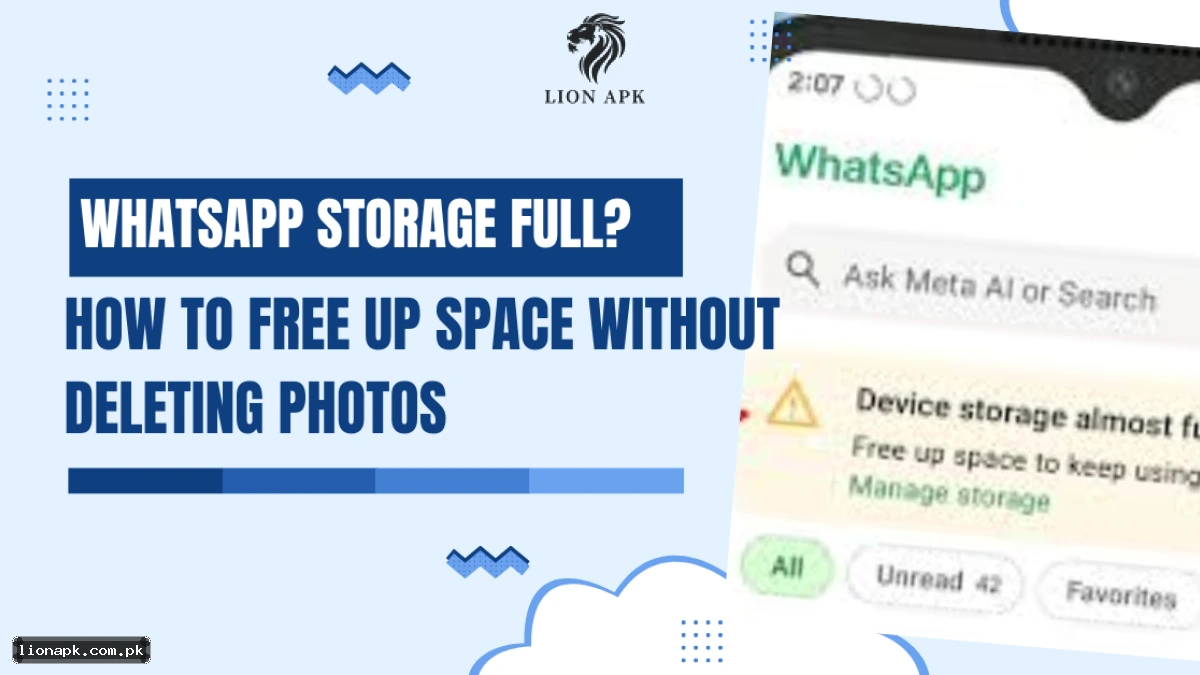
You buy a new Infinix Note 40 or Samsung A32 with 128GB storage, thinking, "Bas, ab life set hai. Yeh kabhi full nahi hoga." (That's it, life is set. This will never fill up.) Six months later, you try to take a selfie at a wedding, and you get the nightmare notification: "Storage Full. Free up space to continue."
You check your gallery. You only have 500 photos. So where did the 100GB go? The culprit is sitting right on your home screen: WhatsApp.
In Pakistan, we don't just use WhatsApp for chatting. We use it for:
- Family Groups: Where Phuppo sends 10 "Good Morning" videos every day.
- Work Groups: Where your boss sends 50MB PDF files.
- Friends Groups: Where you receive 1,000 TikTok links and memes.
The worst part? Even if you delete the photo from your Gallery, it might still be hidden inside your phone, eating up space. If you want to know how to free up space on WhatsApp without losing your precious memories, you need to look where most people never look—the hidden folders.
Here is the bitter truth about why you get the storage error and how to fix it permanently.
How to Free Up Space on WhatsApp (The Hidden 'Sent' Folder)
This is the biggest secret that mobile shopkeepers won't tell you (because they want to charge you Rs 500 to "flash" your phone). When you send a photo to your friend, WhatsApp creates a duplicate copy of that photo and hides it in a "Sent" folder. If you sent a video of your cousin's wedding to 10 people, that video is saved 10 times in your internal storage.
How to Fix It (The File Manager Method)
You don't need a third-party cleaner app (most of them are ads anyway). You just need your phone's default File Manager or the official Files by Google app.
- Open File Manager.
- Go to Internal Storage > Android > media.
- Tap com. whatsapp > WhatsApp > Media.
- Open WhatsApp Images.
- Look for a folder named "Sent".
- Check the Size: Long-press it and check "Details." I bet it's over 2GB.
- Delete It: You can safely delete everything inside this "Sent" folder. These are just copies of photos you already have in your Camera Roll. This will NOT delete the photo from your chat history; it just removes the duplicate file.
Method 2: The Official Storage Manager
WhatsApp actually has a built-in cleaner that is better than any app on the Play Store. It is the safest way to free up space on WhatsApp because it shows you exactly what you are deleting.
- Open WhatsApp.
- Tap the Three Dots (top right) > Settings.
- Tap Storage and Data > Manage Storage.
- The Magic Bar: You will see a yellow bar showing exactly how much space WhatsApp is using. (Read more on the Official WhatsApp FAQ).
What to Delete Here:
- "Forwarded Many Times": This is the junk. These are the viral videos and fake news messages forwarded by random uncles. Delete All.
- "Larger than 5 MB": These are usually long videos. Review them. If it's a funny video you watched once, delete it.
- Chat-by-Chat Cleaning: Scroll down. You will see which chat is eating the most space. Usually, it's that "Cousins" group or "Uni Friends" group. Tap it and delete the videos, but keep the photos.
Method 3: Stop the "Auto-Download" Madness
If you have Zong 4G or Jazz data packages, this setting will save both your storage AND your balance. By default, WhatsApp downloads every single photo and video that anyone sends you. This is suicide for your storage.
Change this setting NOW:
- Go to Settings > Storage and Data.
- Under "Media auto-download":
- When using mobile data: Uncheck everything (Photos, Audio, Videos, Documents).
- When connected to Wi-Fi: Uncheck Videos.
Now, you have to tap a video to download it. This filters out 90% of the junk.
The "Zero Space" Trick: Move to SD Card
If your phone (like the Samsung A15 or Redmi 13C) has a memory card slot, use it! Most budget phones have 64GB or 128GB internal storage, but you can buy a Micro SD Card from Daraz for Rs 1,500. Move your Camera Photos to the SD card, so your Internal Storage is left free for WhatsApp (which sadly cannot run from an SD card).
Extra Tip: Use WhatsApp Web for Bulk Deleting
Cleaning files on a small screen is annoying. A pro trick is to log in to WhatsApp Web on your laptop. It is much easier to select and delete hundreds of old videos with a mouse than with your finger.
Final Verdict
- Do This First: Go to Manage Storage inside WhatsApp and delete "Larger than 5 MB".
- Do This Second: Use File Manager to empty the hidden "Sent" folder.
- Don't Do This: Do NOT download "Ram Cleaner" or "WhatsApp Cleaner" apps. They steal your data. If you are worried about privacy, check our guide on Best Privacy Apps.
If your phone is still lagging after this, it might not be storage—it might be background apps or malware. Check our guide on Online Earning Scams to make sure you haven't downloaded a virus. And if you are clearing space to make videos, don't forget to check our TikTok Earning Guide.
Also, always keep a cloud backup. Install Google Photos to back up your memories before you start deleting things.