
It happened to me just last Tuesday. I was standing outside the BISE board office right here in Dera Ghazi Khan. I urgently needed to print my cousin's roll number slip. I went to the small photocopy khoka (stall) across the street.
I told the shopkeeper I had the PDF on my phone. He pointed to his ancient, dusty HP LaserJet 1020, then looked at me and said, "Bhai, WhatsApp kar do. 20 rupay print ke, aur 30 rupay WhatsApp PC pe kholne ke lagenge." (Send it on WhatsApp. Rs 20 for the print, and an extra Rs 30 for the hassle of opening WhatsApp Web on my computer.
I looked at the USB cable hanging out of the back of his printer. I thought to myself: Why can't I just plug my phone directly into this machine?
Well, you can. But if you try to plug it in normally, your phone will just start charging. It won't print anything. I get asked about this a lot, so if you are wondering how to print from phone using nokoprint app, I am going to walk you through the exact method I use to bypass these silly shop fees.
Here is the honest, step-by-step reality of printing directly from a budget Android phone.
The Bitter Truth: Why Default Android Printing Sucks
If you dig into your phone's settings, you will find an option called "Default Print Service." Do not waste your time with it.
Google designed Android’s built-in printing for those fancy, Rs 60,000+ Wi-Fi printers you see in corporate offices. If you are dealing with a standard Epson EcoTank or an old HP printer that only uses a USB cable, Android is completely blind to it. It does not know how to send a document through a wire.
To make the phone "talk" to the printer, you need two things: a cheap piece of hardware and a third-party app.
Step 1: Get an OTG Adapter (The Hardware)
You can't plug a big square printer cable into a Type-C phone port. You need an OTG (On-The-Go) adapter. This is a tiny connector that plugs into your phone and gives you a standard USB port on the other end.
I bought mine from a local mobile accessories shop for just Rs 150. You can also order a sturdy one online from Daraz.
Crucial Step for Infinix & Tecno Users: If you plug the cable into your Infinix, nothing will happen. Why? Because these budget phones turn off the OTG port by default to save battery. You must go to your Settings > search for "OTG" > and manually toggle the switch to ON. If you skip this, the printer will stay invisible. (To understand how Android handles USB connections safely, you can read the Official Android USB Support Page.)
Step 2: How to Print from Phone Using NokoPrint App
Now that you are physically connected, you need the driver software. Please, do not go to Google and search for "Nokoprint Mod APK VIP." You will just end up downloading malware that steals your EasyPaisa passwords. We always emphasize this in our Online Scams Guide. Just use the official free version.
-
Download the App: Get the official NokoPrint App from the Google Play Store.
-
Open the App: Plug your phone into the printer using the OTG cable. Open NokoPrint. A pop-up window instantly appears asking: "Allow NokoPrint to access the USB device?" Tap OK.
-
The 2MB Download: The app will recognize the printer's name (for example, "Canon LBP 2900"). Tap on it. NokoPrint will use your Zong/Jazz data to quickly download a generic 2MB driver. You only need the internet for this first-time setup; after that, printing is completely offline.
Step 3: Print Your Document (And Tolerate the Ads)
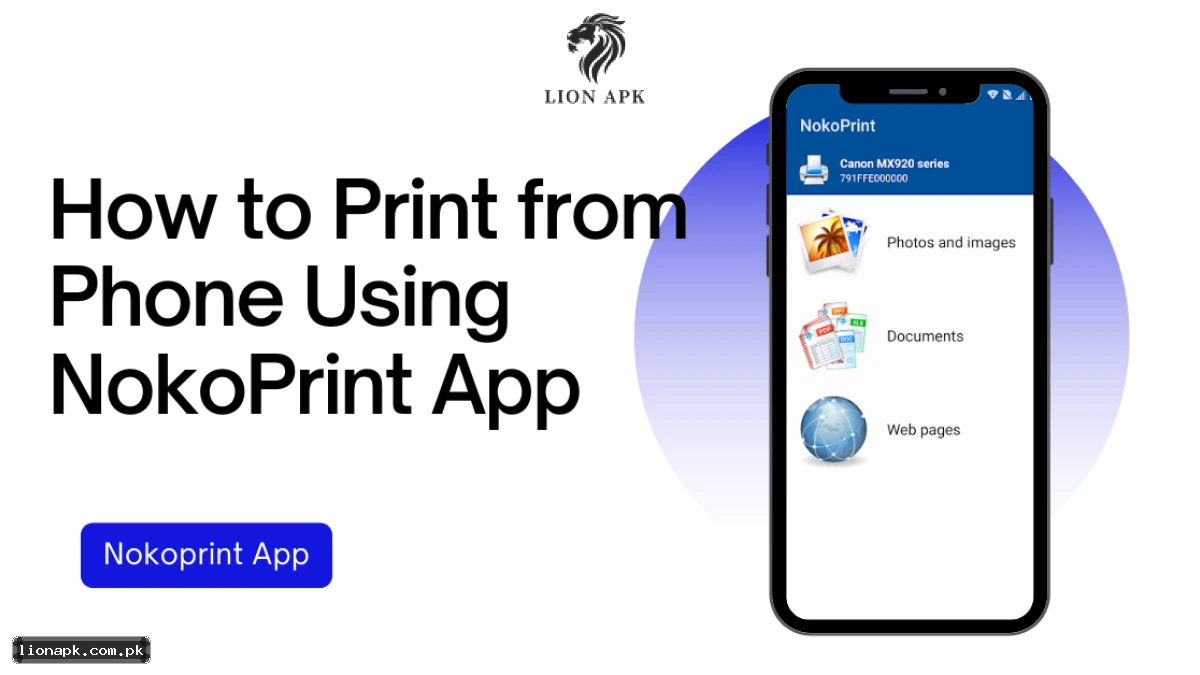
The interface is incredibly straightforward. You can select Photos, Documents, or Web Pages.
-
Tap Documents. (If you can't find your downloaded slip, I highly recommend using Files by Google to keep your folders organized.
-
Tap your PDF.
-
You will see a preview screen. Here, you can select how many copies you want, or choose to print on both sides of the paper if the printer supports it.
-
Tap the big blue Print button at the bottom.
My Honest Warning: This app is free, which means you pay with your time. The moment you hit "Print," NokoPrint will force you to watch a 15-second unskippable video ad (usually for some weird mobile game). It is very annoying when you are standing in a crowded shop, but it is much better than paying extra cash.
Step 4: The MS Word Trap (Don't Do This)
If your university professor sends you an assignment ainMicrosoft Word (.docx) file, never print it directly from NokoPrint.
Budget Android phones process Word fonts terribly. If you print a Word file directly, your margins will be completely ruined, text will overlap, and any Urdu fonts will look like absolute garbage. The Fix: Always convert your file to a PDF first. Open the document using the official Adobe Acrobat Reader, save a copy as a PDF, and then print that PDF. PDFs freeze the formatting so it looks the same on paper as it does on your screen.
(If your phone freezes while trying to convert a heavy PDF, it is a RAM issue. Read our guide on How to Speed Up Slow Android Phones to fix it.
Final Verdict
Figuring out how to bypass the photocopy shop's "WhatsApp fee" is a survival skill every Pakistani student needs.
-
Spend Rs 150 on an OTG cable.
-
Enable OTG in your phone's settings.
-
Use the official NokoPrint app.
-
Always print PDFs, never Word files.
Next time you are at the shop, just hand the guy his printer cable, plug it into your phone, and print it yourself. Keep your WhatsApp clean, and save your money for a cup of chai instead. (Speaking of keeping WhatsApp clean, if you are struggling with low storage, make sure you check out our WhatsApp Storage Fix Guide.)